Skip to content
Text & Fields

Text Field

Filled, outlined, error, password, search, and multi-line entry

Text fields let people enter and edit text. Material 3 offers filled and outlined styles with labels, placeholders, supporting text, error states, leading and trailing icons, keyboard options, and visual transformations.

Text Field demos rendered in Compose Playground
Pixel-accurate preview · light theme

Examples

01

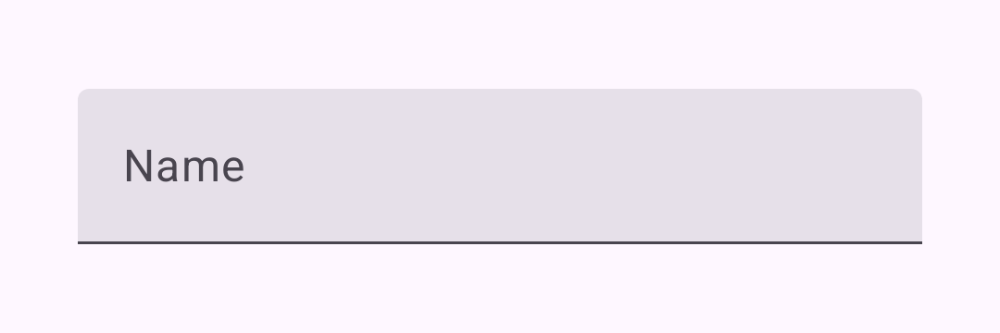
Filled

A filled field with label, placeholder, and a Clear action when filled.

Kotlin
var text by rememberSaveable { mutableStateOf("") }
TextField(
    value = text,
    onValueChange = { text = it },
    label = { Text("Name") },
    placeholder = { Text("Enter your name") },
    singleLine = true,
    trailingIcon = {
        if (text.isNotEmpty()) {
            IconButton(onClick = { text = "" }) {
                Icon(Icons.Filled.Clear, "Clear")
            }
        }
    }
)
02

Error & validation

An outlined field that flags an invalid email via isError and supportingText.

Kotlin
var email by rememberSaveable { mutableStateOf("") }
val isError = email.isNotEmpty() && !email.contains("@")
OutlinedTextField(
    value = email,
    onValueChange = { email = it },
    label = { Text("Email") },
    isError = isError,
    supportingText = {
        Text(if (isError) "Must contain @" else "We'll never share it")
    },
    keyboardOptions = KeyboardOptions(keyboardType = KeyboardType.Email),
    singleLine = true
)
03

Password

Toggle a visual transformation to show or hide the entry.

Kotlin
var password by rememberSaveable { mutableStateOf("") }
var visible by rememberSaveable { mutableStateOf(false) }
OutlinedTextField(
    value = password,
    onValueChange = { password = it },
    label = { Text("Password") },
    singleLine = true,
    visualTransformation = if (visible) {
        VisualTransformation.None
    } else {
        PasswordVisualTransformation()
    },
    keyboardOptions = KeyboardOptions(keyboardType = KeyboardType.Password),
    trailingIcon = {
        IconButton(onClick = { visible = !visible }) {
            Icon(
                if (visible) Icons.Filled.VisibilityOff else Icons.Filled.Visibility,
                if (visible) "Hide password" else "Show password"
            )
        }
    }
)
05

Multi-line

Set minLines to reserve room for several lines of input.

Kotlin
var notes by rememberSaveable { mutableStateOf("") }
OutlinedTextField(
    value = notes,
    onValueChange = { notes = it },
    label = { Text("Notes") },
    minLines = 3
)